DISCLOSURE: Movie Studio Zen is supported by its audience. When you purchase through links on this site, we may earn an affiliate commission.
Solved Trimmer and Preview Window


Hello,
Hope everyone is well!
I have a question about how to separate the trimmer from the preview window? I've asked Derek about this before but I just got back Vegas Pro recently (this time version 20) and forgot the answer. Please let me know if anyone has the answer.
Thanks
Keith
Hope everyone is well!
I have a question about how to separate the trimmer from the preview window? I've asked Derek about this before but I just got back Vegas Pro recently (this time version 20) and forgot the answer. Please let me know if anyone has the answer.
Thanks
Keith
Last Edit:18 Oct 2023 15:10 by keithd16
Please Log in or Create an account to join the conversation.


Hi Keith
Sorry for the long....... delay in responding to your message.
I have been unwell for the last 2 weeks and haven't been online during this time.
Feeling better now and am back on the forum today, answering all the unanswered questions.
The instructions for moving tabbed windows around in VEGAS, are different, depending on which version you are using.
The following instructions will work in the last couple of versions.
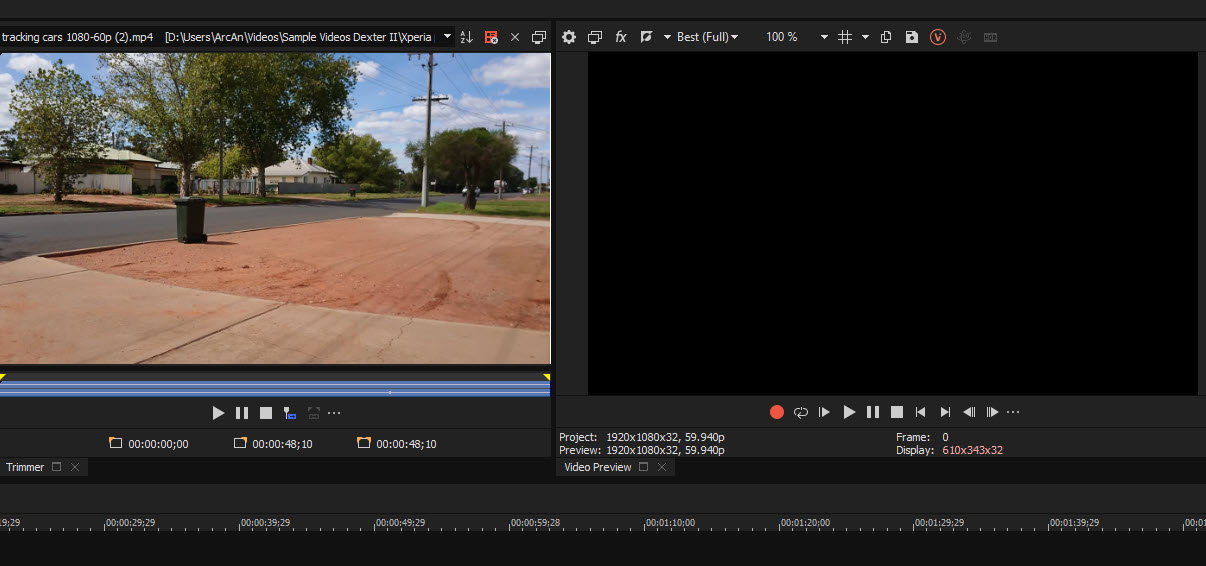
To un-dock any tabbed window in VEGAS Pro, however over the label for window (at bottom), press & hold down Left Mouse button, then drag vertically down.
Now you are free to move window anywhere on the desktop.
If you would like to re-dock the Trimmer window next to the Preview window, position it halfway between Preview and other tabbed windows on left, the press the CTRL key - it will now dock into place.
To make the Trimmer window disappear, hover over label and press x button.
If the Trimmer window ever disappears, go to View / Window / Trimmer.

Regards
Derek
Sorry for the long....... delay in responding to your message.
I have been unwell for the last 2 weeks and haven't been online during this time.
Feeling better now and am back on the forum today, answering all the unanswered questions.
The instructions for moving tabbed windows around in VEGAS, are different, depending on which version you are using.
The following instructions will work in the last couple of versions.
To un-dock any tabbed window in VEGAS Pro, however over the label for window (at bottom), press & hold down Left Mouse button, then drag vertically down.
Now you are free to move window anywhere on the desktop.
If you would like to re-dock the Trimmer window next to the Preview window, position it halfway between Preview and other tabbed windows on left, the press the CTRL key - it will now dock into place.
To make the Trimmer window disappear, hover over label and press x button.
If the Trimmer window ever disappears, go to View / Window / Trimmer.
Regards
Derek
ℹ️ Remember to turn everything off at least once a week, including your brain, then sit somewhere quiet and just chill out.
Unplugging is the best way to find solutions to your problems. If you would like to share some love, post a customer testimonial or make a donation.
Unplugging is the best way to find solutions to your problems. If you would like to share some love, post a customer testimonial or make a donation.
Last Edit:18 Oct 2023 15:29 by DoctorZen
Please Log in or Create an account to join the conversation.
Hey Derek,
I understand your delay and glad you're feeling better! Thanks for your response!
Keith
I understand your delay and glad you're feeling better! Thanks for your response!
Keith
by keithd16
The following user(s) said Thank You: DoctorZen
Please Log in or Create an account to join the conversation.
Hey Derek,
I have another issue. I must have done something by mistake because I notice now that when I line up videos or audio there's no automatic alignment that I noticed before. I'd like to reestablish that.
Please let me know as soon as you're able.
Thanks
Keith
I have another issue. I must have done something by mistake because I notice now that when I line up videos or audio there's no automatic alignment that I noticed before. I'd like to reestablish that.
Please let me know as soon as you're able.
Thanks
Keith
by keithd16
Please Log in or Create an account to join the conversation.
I have another issue. I must have done something by mistake because I notice now that when I line up videos or audio there's no automatic alignment that I noticed before. I'd like to reestablish that.
What do you mean by "there's no automatic alignment ?"
Do you mean the ability to Snap (line up) different pieces of media on the timeline ?
If this is what you mean, Snapping is turned on/off by pressing F8 on your keyboard or, going to Options (top menu) - Enable Snapping.
If something else is happening and you don't know which setting your accidentally changed, the easiest thing to do is a Full Program Reset.
Reset instructions here:
www.moviestudiozen.com/free-tutorials/doctor-zen-faq/how-to-reset-sony-software-to-default-settings#a1
ℹ️ Remember to turn everything off at least once a week, including your brain, then sit somewhere quiet and just chill out.
Unplugging is the best way to find solutions to your problems. If you would like to share some love, post a customer testimonial or make a donation.
Unplugging is the best way to find solutions to your problems. If you would like to share some love, post a customer testimonial or make a donation.
by DoctorZen
Please Log in or Create an account to join the conversation.
Hey Derek,
Yes, snapping on the timeline was exactly what I was talking about.
Thanks again.
Keith
Yes, snapping on the timeline was exactly what I was talking about.
Thanks again.
Keith
by keithd16
Please Log in or Create an account to join the conversation.
Hey Derek,
Hope you're well these days!
For some odd reason the preview window no longer appears after I open Vegas Pro and I'd like to know how that happened and how I can regain that feature. Please let me know whenever you can.
Thanks.
Keith
Hope you're well these days!
For some odd reason the preview window no longer appears after I open Vegas Pro and I'd like to know how that happened and how I can regain that feature. Please let me know whenever you can.
Thanks.
Keith
by keithd16
Please Log in or Create an account to join the conversation.
Hi Keith
Sorry for the delay in replying to your new message.
You have probably solved this problem by now, but if not, here is what to try.
The first thing to check, is to make sure you haven't accidentally tabbed it together with another window - this is quite a common mistake.
In VEGAS Pro, the first setting to check is this:
Go to View / Window Layouts / Default Layout
This should normally restore all windows, back into their default positions.
If that does not work, make sure you haven't moved the Preview window onto a 2nd monitor screen, if you use 2 monitors.
Simply drag Preview back to monitor #1.
Another area missing windows can hide behind, is below the Windows Taskbar.
These instructions are for Windows 11 - I can't remember what W10 is like.
Right-click the bottom Windows Taskbar and select Taskbar Settings.
Open Taskbar Behaviors
Temporarily turn on Automatically Hide the Taskbar
Open VEGAS Pro and check to see if top of Preview can be seen - drag up to repair.
Return Taskbar to normal settings.
If none of the above works, do a full program reset.
Reset instructions here:
www.moviestudiozen.com/free-tutorials/doctor-zen-faq/how-to-reset-sony-software-to-default-settings#a1
Regards
Derek
Sorry for the delay in replying to your new message.
You have probably solved this problem by now, but if not, here is what to try.
The first thing to check, is to make sure you haven't accidentally tabbed it together with another window - this is quite a common mistake.
In VEGAS Pro, the first setting to check is this:
Go to View / Window Layouts / Default Layout
This should normally restore all windows, back into their default positions.
If that does not work, make sure you haven't moved the Preview window onto a 2nd monitor screen, if you use 2 monitors.
Simply drag Preview back to monitor #1.
Another area missing windows can hide behind, is below the Windows Taskbar.
These instructions are for Windows 11 - I can't remember what W10 is like.
Right-click the bottom Windows Taskbar and select Taskbar Settings.
Open Taskbar Behaviors
Temporarily turn on Automatically Hide the Taskbar
Open VEGAS Pro and check to see if top of Preview can be seen - drag up to repair.
Return Taskbar to normal settings.
If none of the above works, do a full program reset.
Reset instructions here:
www.moviestudiozen.com/free-tutorials/doctor-zen-faq/how-to-reset-sony-software-to-default-settings#a1
Regards
Derek
ℹ️ Remember to turn everything off at least once a week, including your brain, then sit somewhere quiet and just chill out.
Unplugging is the best way to find solutions to your problems. If you would like to share some love, post a customer testimonial or make a donation.
Unplugging is the best way to find solutions to your problems. If you would like to share some love, post a customer testimonial or make a donation.
by DoctorZen
Please Log in or Create an account to join the conversation.
Hey Derek,
I've already resolved it but thanks anyway for the reply.
Hope you're better these days!
Keith
I've already resolved it but thanks anyway for the reply.
Hope you're better these days!
Keith
by keithd16
The following user(s) said Thank You: DoctorZen
Please Log in or Create an account to join the conversation.
Forum Access
- Not Allowed: to create new topic.
- Not Allowed: to reply.
- Not Allowed: to edit your message.
Moderators: DoctorZen
Time to create page: 0.842 seconds